


Kuriakose Vaisian
Brand
25 July 2024
3
min read
Share this article
Have you tried Desktop Mode with your Fairphone?
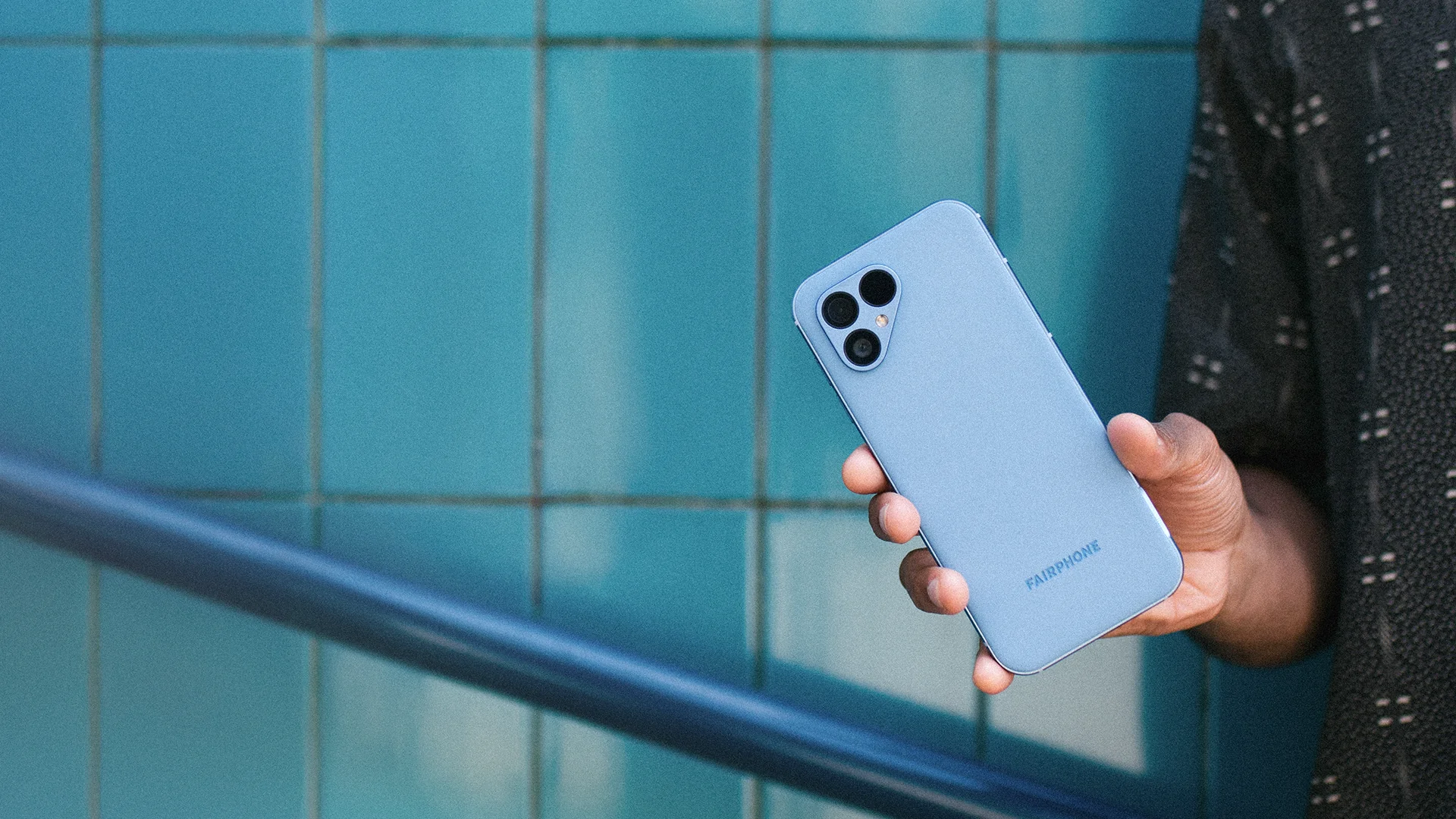
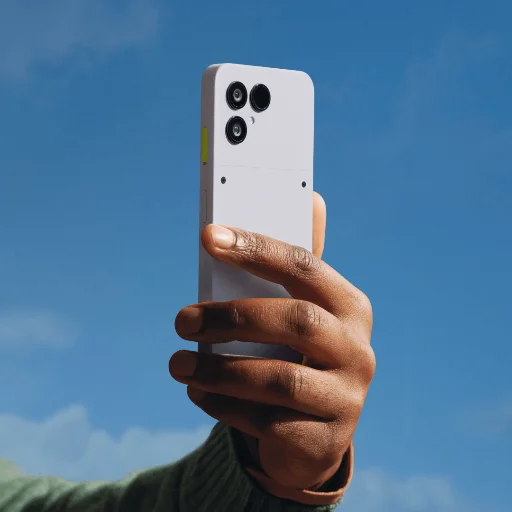
Did you know that your Fairphone 5 can double up as a personal computer? All you need is a monitor and an HDMI to USB-C cable to hook it up. Add a wireless keyboard and mouse, and you have all the convenience of a desktop set-up without an actual computer.
So how does the magic happen? It’s called Desktop Mode. If you open up your Settings menu, you should find it nested under Display. The moment the device switches into desktop mode, you get an extremely user-friendly interface. There’s a taskbar, switchable app windows, and a control panel in the bottom right, just like you would see on a standard PC.
This writer gave the Fairphone 5’s desktop mode a whirl a few weeks ago, when I made the dubious decision to come to the office without my work laptop. With a multitude of monitors (and other PC paraphernalia) readily available, I decided to see if the Fairphone 5 could actually work as a temporary replacement. With most of my work stored in the cloud, it really wasn’t that much of a stretch for this experiment to work. Which it did. Quite well.
Checking and replying to emails was never going to be an issue. Even when using the Fairphone in normal, you know, phone mode, it’s a snappy affair. However, on desktop mode, the experience was superior, thanks to the larger display and the added advantage of a regular keyboard. The experience was identical to working on my laptop, better even, given that I didn’t have to lug my laptop into work. I had to work on a couple of word documents and spreadsheets, which I did handily enough, using Google Workspace. Browsing the internet was a breeze as well. With my trusty Fairbuds XL connected via Bluetooth, watching videos on YouTube was definitely more enjoyable compared to on my laptop. Multitasking was much easier, with the ability to switch between windows becoming so much more organic. All in all, given my requirements, Desktop Mode worked like a charm. Nobody was the wiser (until now) that I had forgotten my laptop, and all my deadlines were met.
Of course, there are limitations to desktop mode as well. You will need the required accessories like cables, keyboards, mice, and an actual monitor. It’s also not optimized for every app out there. So if you want to bring your mobile gaming experience onto a bigger screen, this might not be the answer, at least not yet. The same goes for more resource-intensive tasks, like video and photo editing, for example. But if you find yourself in a situation like I did, it’s comforting to know that your Fairphone 5 is more than capable of stepping up and saving the day. Go ahead and give it a whirl and let us know what your experience was like.
Latest stories

We just released the industry’s first ever nature report.
Like it or not, capitalism and nature are deeply linked. Think about it. Over half of the world’s GDP depends
Read more
This is how we're supporting refugee communities around the world.
In case you missed it, Fairphone has teamed up with the non-profit KLABU, who are driving positive impact through the
Read more
"As a tech leader, please check yourself."
A couple of weeks ago, I was standing at the podium at the Fairphone headquarters, talking to my colleagues about
Read more